
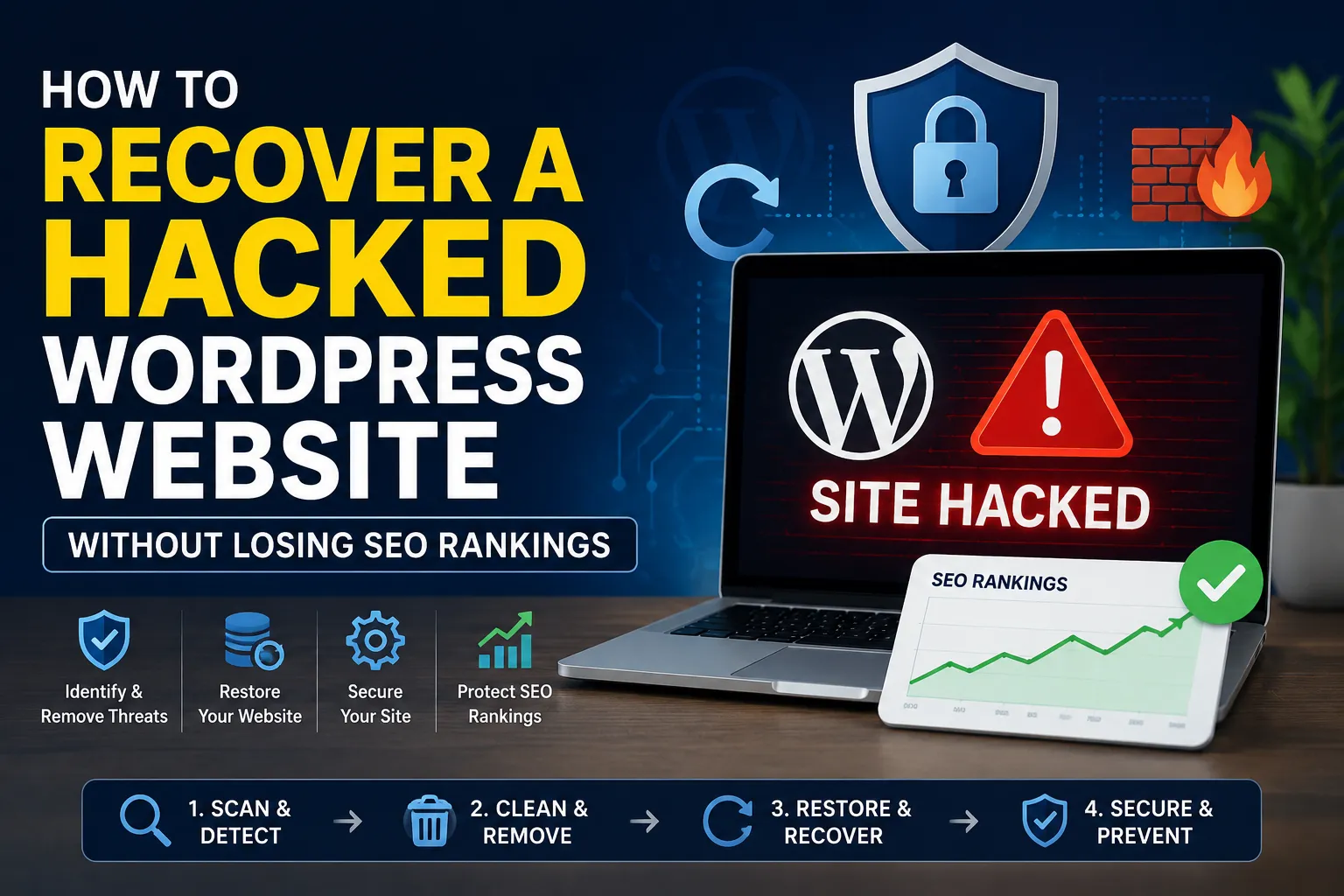
📋 Table of Contents
- How to Know Your WordPress Site Is Hacked
- Immediate Steps to Take Right Now
- Step 1 — Scan & Detect Malware
- Step 2 — Clean & Remove the Infection
- Step 3 — Restore & Recover Your Website
- Step 4 — Secure & Prevent Future Hacks
- How to Recover Your SEO Rankings After a Hack
- Best WordPress Security Tools & Plugins
- When to Call a Professional
- Frequently Asked Questions
Introduction
Imagine opening your website one morning and seeing a Google warning that says "This site may be hacked." Or worse — your site is redirecting visitors to casino spam, your hosting account has been suspended, and your phone is blowing up with confused messages from clients. This is a nightmare that thousands of WordPress website owners across India face every year.
WordPress powers over 43% of all websites on the internet. That massive popularity also makes it the number-one target for hackers, bots, and automated malware attacks. From Mumbai startups to Andheri-based ecommerce stores, no business is too small to be targeted.
The good news? A hacked WordPress website is recoverable. And with the right process, you can bring your SEO rankings back too — without starting from zero. At TechMR, we have cleaned and recovered dozens of hacked WordPress websites for clients across Mumbai, Borivali, Dahisar, Kandivali, and beyond. This guide shares exactly what we do, step by step.
How to Know Your WordPress Site Is Hacked
Before you can fix anything, you need to confirm that you are actually dealing with a hack and not a plugin conflict or server error. Here are the most common warning signs to look for:
🚨 Warning Signs Your WordPress Site Has Been Hacked
- Google Search Console shows a "Security Issues" alert or manual action penalty
- Visitors are being redirected to spam, gambling, or adult websites
- Google search results show your pages with strange Japanese, Russian, or spam text
- Your hosting provider suspends or disables your account for malware activity
- Unknown admin users appear in your WordPress dashboard
- New PHP files appear in your public_html folder that you never uploaded
- Your website suddenly shows a blank white screen or HTTP 500 error
- Antivirus software on visitor computers starts blocking your website
- Site traffic drops sharply and suddenly with no obvious reason
- Google shows a "This site may harm your computer" or "Deceptive site ahead" warning
If you are seeing two or more of these signs, treat it as a confirmed compromise and start the recovery process immediately. Every hour you wait gives the attacker more time to deepen the infection and gives Google more time to penalize your rankings.
Immediate Steps to Take Right Now
Do not delay. The moment you suspect a hack, act within the hour. A hacked site that stays live can infect your visitors, get blacklisted by Google, and get permanently suspended by your hosting provider.
Before jumping into malware scanning, there are four things you must do in the first 30 minutes after discovering a hack:
Put Your Site in Maintenance Mode
Temporarily take your site offline or put it in maintenance mode to prevent visitors from landing on infected pages. This protects your visitors and stops Google from crawling the infected content further. You can do this from your hosting cPanel by renaming your public_html folder temporarily or by using a maintenance plugin.
Change All Passwords Immediately
Reset every password connected to your site right now — WordPress admin password, FTP/SFTP password, cPanel/hosting login, and your MySQL database password. Use strong passwords of at least 16 characters with symbols, numbers, and mixed case. Do not reuse any old passwords.
Check for Unknown Admin Users
Log into your WordPress dashboard and go to Users → All Users. Delete any admin accounts you do not recognize immediately. Hackers often create a backdoor admin account so they can regain access even after cleanup.
Notify Your Hosting Provider
Contact your web hosting support team and let them know about the hack. They may already have detected it. Many hosting providers like Hostinger, SiteGround, and Bluehost have malware scanning tools and can help isolate the infection at the server level. They may also have a backup you can restore from.
Step 1 — Scan & Detect the Malware
Once you have secured your access points, it is time to find out exactly where the malware is hiding. WordPress hacks can inject malicious code into theme files, plugins, core files, the database, or even .htaccess files. A thorough scan will identify all infected locations.
Use a WordPress Security Plugin to Scan
Install and run a dedicated security scanner. Do not skip this step — manual inspection alone will miss hidden injections. The most reliable free scanners are Wordfence Security and Sucuri Security. Install one of these, run a full deep scan, and document every file and database entry it flags.
Check for PHP Files in Unusual Places
Log into your cPanel File Manager and look through your public_html/uploads folder. There should be no PHP files in the uploads folder — only images and media. If you see any .php files in your uploads folder, they are almost certainly malicious backdoors. Delete them immediately.
Inspect Your .htaccess File
Hackers love modifying the .htaccess file because it controls redirects at the server level. In your cPanel File Manager, navigate to public_html/.htaccess and open it. A clean standard WordPress .htaccess file looks like this:
Clean .htaccess example:
# BEGIN WordPress
<IfModule mod_rewrite.c>
RewriteEngine On
RewriteBase /
RewriteRule ^index\.php$ - [L]
RewriteCond %{REQUEST_FILENAME} !-f
RewriteCond %{REQUEST_FILENAME} !-d
RewriteRule . /index.php [L]
</IfModule>
# END WordPress
If your .htaccess contains any unfamiliar redirect rules, base64 encoded strings, or suspicious IP-based redirect code, that is malware. Replace the entire file with the clean version above.
Scan With an External Online Tool
In addition to the WordPress plugin scanner, run your website URL through these free external scanners for a second opinion: VirusTotal.com, Sucuri SiteCheck (sitecheck.sucuri.net), and Google Safe Browsing (transparencyreport.google.com/safe-browsing/search). These tools check your site against known malware databases and blacklists.
🔍 Worried Your WordPress Site Has Been Hacked?
TechMR provides emergency WordPress malware scanning and cleanup services across Mumbai. We will identify and remove the infection within 24 hours.
Step 2 — Clean & Remove the Infection
After the scan has mapped out all infected files and database entries, it is time to remove them. This step requires patience and precision. Rushing this will leave backdoors behind, and the hackers will simply re-infect your site within days.
Clean WordPress Core Files
Download a fresh copy of WordPress from WordPress.org for your exact current version. Using an FTP client like FileZilla, replace the wp-admin and wp-includes folders entirely with the clean versions. Do not touch wp-content yet — that contains your theme, plugins, and uploads. Also replace the root PHP files: index.php, wp-login.php, wp-settings.php, and all other root-level WordPress files.
Clean Your Theme Files
If you are using a theme from WordPress.org or a premium theme provider, download a fresh copy and compare your current theme files against the clean version. Use a file comparison tool to spot injected code. Common injection points in themes are functions.php, header.php, and footer.php. Look for base64 encoded strings (they look like random characters starting with eval(base64_decode) and remove them entirely.
Important: If your theme is a custom-built theme (like websites built by TechMR), do not simply replace the files. You need to carefully compare and remove only the malicious code while keeping the custom code intact. This is where professional help is recommended.
Clean the WordPress Database
Hackers often inject spam links and redirect code directly into your WordPress database — especially inside post content, widget settings, and option values. Log into your cPanel and open phpMyAdmin. Run a search across the wp_posts and wp_options tables for suspicious strings like <script, eval(, base64_decode, and known spam domains. The Wordfence or Sucuri plugin scan will also flag database injections — use the plugin to clean those automatically wherever possible.
Delete Unused Plugins and Themes
Every deactivated but installed plugin or theme is a potential entry point for attackers. After the cleanup, permanently delete every plugin and theme you are not actively using. Go to Plugins → Installed Plugins, deactivate all unused ones, and delete them. Do the same in Appearance → Themes.
Step 3 — Restore & Recover Your Website
In many cases, the fastest and most reliable path to a clean site is restoring from a pre-hack backup. Here is how to approach this step:
Restore From a Clean Backup
Log into your cPanel and check the backup section. Most good hosting providers (Hostinger, SiteGround, Cloudways) take daily automatic backups. Identify the most recent backup that was taken before the hack occurred — not after, because restoring a post-hack backup will just restore the infection too. Restore both the files and the database from that date.
Pro Tip: After restoring from backup, do NOT skip updating all passwords, deleting unknown users, and patching the vulnerability that caused the hack. Otherwise your site will be re-hacked within hours of restoration.
If No Backup Is Available
If you do not have a backup, you will need to complete the manual cleaning steps from Step 2. After cleaning, do the following to verify the site is working correctly: run the scanner again to confirm zero infections, check all pages load without redirects, verify no unknown admin users exist, test all forms and checkout flows (for ecommerce), and check that your XML sitemap is intact and correct.
Update Everything
Once your site is clean, update WordPress core to the latest version, update every plugin to its latest version, and update your active theme. Most WordPress hacks exploit known vulnerabilities in outdated plugins and themes. Updating closes those holes permanently.
Step 4 — Secure & Prevent Future Hacks
Getting hacked once is unfortunate. Getting hacked twice because you did not secure the site properly is avoidable. After recovery, implement these security measures immediately:
🛡️ WordPress Security Hardening Checklist
- Install a reputable security plugin — Wordfence, Sucuri, or iThemes Security
- Enable Web Application Firewall (WAF) to block malicious requests before they reach WordPress
- Change the default WordPress login URL from /wp-admin to something custom
- Enable Two-Factor Authentication (2FA) on all admin accounts
- Limit login attempts to 3–5 attempts before locking the IP address
- Disable XML-RPC if you are not using it (most sites do not need it)
- Remove the WordPress version number from your site's HTML source
- Set correct file permissions — 644 for files, 755 for directories
- Install an SSL certificate and force HTTPS across the entire site
- Set up automated daily backups stored in a separate location (not just your server)
- Use a strong, unique password for every account and store them in a password manager
- Regularly audit your list of admin users and remove any you do not recognize
- Use a CDN like Cloudflare — it provides DDoS protection and can block malicious bots
Move to a Managed WordPress Hosting
If your current hosting plan does not include automatic malware scanning, daily backups, and firewall protection, consider upgrading to a managed WordPress hosting plan. Providers like Cloudways, Kinsta, and WP Engine include these features by default and significantly reduce your risk surface. The cost is slightly higher but far cheaper than emergency hack recovery.
How to Recover Your SEO Rankings After a Hack
This is the section most WordPress recovery guides skip — but it is absolutely critical. Even after your site is fully cleaned and secured, Google may still show warnings, blacklist notices, or hold back rankings until you take specific action. Here is the exact process to get your SEO back:
1. Request Removal From Google Safe Browsing
If Google flagged your site as harmful and is showing a "Deceptive site ahead" warning, go to Google Search Console → Security Issues. After your site is clean, you will see an option to request a review. Click "Request a Review" and fill in the details explaining what happened, what you found, and what you cleaned. Google typically processes these reviews within 1–3 business days.
2. Check for Manual Actions
In Google Search Console, check under Security & Manual Actions → Manual Actions. If there is a manual penalty, read the description carefully. For hack-related manual actions, after cleaning your site, submit a reconsideration request from the same section. Explain the hack, the cleanup steps you took, and the security measures you have now put in place.
3. Submit Your Sitemap Again
After the cleanup, go to Google Search Console → Sitemaps and resubmit your XML sitemap URL (usually yourdomain.com/sitemap.xml). This tells Google to re-crawl and re-index your clean pages as quickly as possible. It speeds up the recovery timeline significantly.
4. Check for Spam Pages Indexed by Google
Search Google for site:yourdomain.com and look through the results. If you see spam pages, casino pages, or pages in foreign languages that were added by the hacker, you need to remove them. Use Google Search Console's URL Removal Tool to request removal of any URLs that no longer exist or contain spam content.
5. Disavow Spam Backlinks If Needed
Some hackers use your site to build spam backlinks to other sites, which can result in your domain getting flagged for unnatural link patterns. In Google Search Console, go to Links → check your inbound links. If you see hundreds of low-quality links from spam directories pointing to your site because of the hack, use the Disavow Tool to tell Google to ignore those links.
6. Monitor Rankings for 4–8 Weeks
After submitting all reviews and resubmitting your sitemap, give Google 4–8 weeks to fully re-crawl your site and restore rankings. Use Google Search Console's Performance report to monitor impressions and clicks over time. In most cases, rankings recover to pre-hack levels within 6 weeks if the cleanup was thorough and quick.
📉 Lost SEO Rankings After a Hack?
TechMR provides WordPress hack recovery + SEO recovery services for businesses across Mumbai, Borivali, Andheri, Dahisar, and all of Maharashtra. We handle the complete cleanup and Google reconsideration process for you.
Best WordPress Security Tools & Plugins in 2026
The right tools make a massive difference in how quickly you detect and recover from a hack. Here are the most trusted and widely used WordPress security tools available in 2026:
Wordfence Security (Free + Premium)
Wordfence is the most popular WordPress security plugin with over 5 million active installations. It includes a malware scanner, a firewall, login security, and real-time threat intelligence. The free version is powerful enough for most sites. Wordfence Premium adds real-time firewall rules and malware signatures rather than 30-day-delayed updates.
Sucuri Security (Free + Premium)
Sucuri offers both a free WordPress plugin and a premium cloud-based Website Application Firewall. The free plugin gives you file integrity monitoring, security hardening, and audit logs. The Sucuri WAF (paid) is one of the best in the industry for blocking attack traffic before it ever reaches your server.
iThemes Security Pro
iThemes Security (now rebranded as Solid Security) is excellent for beginners. It has a one-click security check that identifies and fixes the most common vulnerabilities in your WordPress setup with minimal technical knowledge required.
MalCare Security
MalCare is particularly popular in India because of its affordable pricing and one-click malware removal feature. It scans your site on its own servers (so there is no load on your hosting), detects complex malware that other plugins miss, and can clean infections automatically with a single click.
Cloudflare (Free CDN + WAF)
Cloudflare is not just a CDN — its free plan includes a Web Application Firewall that blocks common attack patterns, DDoS protection, and bot management. For any business website, especially ecommerce stores in Mumbai, setting up Cloudflare is one of the highest-impact free security improvements you can make.
When to Call a Professional WordPress Developer
Not every hack is something a non-technical business owner should attempt to clean solo. Here are situations where calling a professional WordPress agency like TechMR is the right call:
- Your site has been hacked more than once in the past six months
- The malware scanner found injections in the database and core WordPress files simultaneously
- Your hosting has been suspended and you cannot access the cPanel
- You do not have a backup and the entire site content is at risk
- Your site is an ecommerce store handling payments — data breach liability is a concern
- Google has issued a manual action penalty and your rankings have dropped over 50%
- You are running a custom-built PHP or Laravel website alongside WordPress
- The hack has been going on for weeks and has deeply embedded backdoors throughout the file system
TechMR's WordPress security and maintenance team handles emergency hack recovery across Mumbai. We have resolved complex WordPress hacks for ecommerce businesses, service businesses, hospitals, and educational institutions. Our recovery process covers full malware removal, security hardening, hosting optimization, and Google reconsideration support — all handled under one roof.
Frequently Asked Questions
Signs include sudden traffic drops, Google showing a "This site may be hacked" warning, unknown admin users in your dashboard, new PHP files in your uploads folder, your hosting provider suspending your account, or visitors being redirected to spam websites. If you see two or more of these signs, treat it as a confirmed hack and start recovery immediately.
Yes, SEO rankings can fully recover if you act quickly. The key steps are removing all malware, submitting a reconsideration request via Google Search Console, fixing any manual penalties, resubmitting your sitemap, and monitoring performance over 4–8 weeks. The faster you clean the site, the faster rankings bounce back.
A basic cleanup can take 24–72 hours depending on the severity. Full SEO recovery from Google's side can take 2–8 weeks depending on how quickly you submitted a clean-up report in Google Search Console and whether there was a manual penalty involved.
If you have a recent clean backup (taken before the hack), restoring it is the fastest option. However, you still need to find and fix the vulnerability that allowed the hack in the first place — otherwise your site will be re-hacked quickly. Manual cleaning is necessary when no clean backup is available.
TechMR provides emergency WordPress malware removal, file and database cleanup, security hardening, Google reconsideration support, and ongoing WordPress maintenance services. We serve businesses across Mumbai, Borivali, Dahisar, Andheri, Kandivali, Malad, Goregaon, and all of Maharashtra. WhatsApp us at any time for emergency recovery help.